
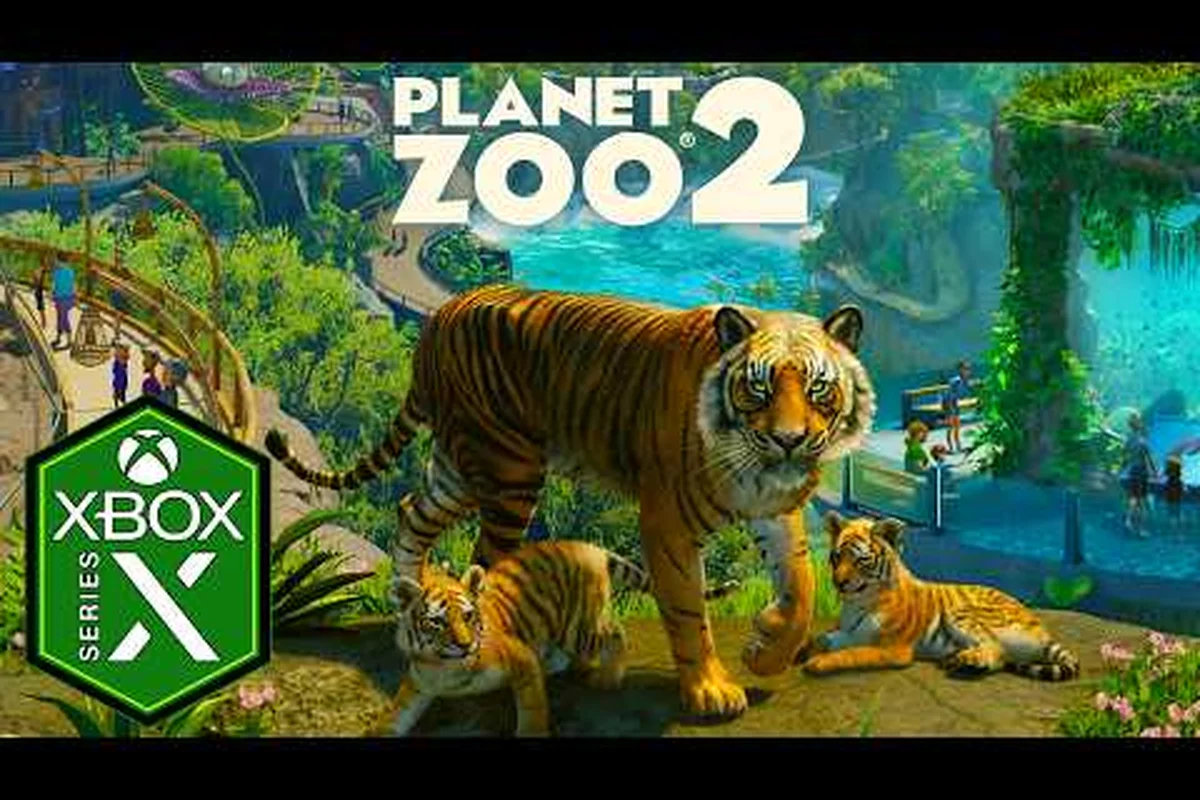
Planet Zoo 2 optimisation tips matter because a zoo simulation lives or dies on smooth camera movement and responsive building tools. When your park hits 3,000 guests and 40 habitats, the engine starts juggling thousands of individual animal animations, guest pathfinding queries, and dynamic lighting updates every frame. A few targeted settings changes can recover 20–40 FPS without sacrificing the visual charm that makes the animals feel alive, and this guide breaks down exactly which sliders to touch first on both budget rigs and high-end machines.
Understanding Planet Zoo 2 Performance Bottlenecks
Before changing any settings, you need to know whether your frame drops come from the CPU, the GPU, or the storage subsystem. Planet Zoo 2 pushes all three harder than the original game because the sequel adds more complex animal behaviors, denser foliage, and a revamped lighting model that runs through DirectX 12. Community testing since the October 13, 2026 launch shows that most mid-range systems hit a CPU bottleneck first, especially when the park grows past 2,500 visitors.
The official hardware requirements on the Planet Zoo 2 Steam page list an Intel i7-8700K or Ryzen 5 3600 as the minimum processor, paired with an RTX 2060 or RX 5600XT for graphics. The recommended tier jumps to an i7-10700K or Ryzen 7 5800X with an RTX 3070 or RX 6700XT. That gap between minimum and recommended is significant because the game's simulation complexity scales non-linearly with park size, which means a CPU that handles a 10-habitat zoo at 60 FPS can drop to 25 FPS once you add 30 more habitats and a few thousand guests.
How the Simulation Engine Affects Frame Times
The core issue is that Planet Zoo 2 runs a deterministic simulation tick for every animal, guest, and staff member. Each tick calculates needs, pathfinding, social interactions, and environmental responses. When hundreds of entities update simultaneously, the main thread becomes the limiting factor, and the GPU sits idle waiting for instructions. This is why lowering graphical settings often produces disappointing results on crowded parks — the bottleneck is not pixel shading but simulation throughput.
A useful diagnostic step is to open the in-game performance overlay and watch the frame time graph while panning across different areas of your zoo. If frame times spike near guest plazas and animal viewing areas but stay smooth in empty construction zones, you are CPU-limited. If frame times remain high even in an empty sandbox map, the GPU or memory bandwidth is the constraint. Understanding this split determines which optimisation tips will actually help your specific setup.
| Bottleneck Type | Primary Symptom | Best Fix Priority |
|---|---|---|
| CPU-bound | Frame drops near crowds and complex habitats | Lower guest count, reduce simulation frequency |
| GPU-bound | High frame times even in empty maps | Lower resolution scale, disable volumetric effects |
| Storage-bound | Stuttering when moving camera quickly | Move game to SSD, enable shader pre-caching |
| Memory-bound | Crashes after long sessions, texture pop-in | Close background apps, lower texture quality |
Planet Zoo 2 Settings for Low End PC Builds
If your system sits near the minimum requirements, the goal is to preserve playable frame rates while keeping the core zoo management experience intact. Planet Zoo 2 settings for low end PC configurations should prioritize simulation stability over visual fidelity, because a stuttering camera makes precise habitat construction frustrating. The good news is that several settings have outsized performance impacts with minimal visual loss.
Start by setting the overall quality preset to Low, then manually restore a few settings that matter for readability. Texture quality can often stay at Medium if you have 6GB of VRAM, because animal fur and signage remain legible without a huge performance cost. The settings that should always stay low on budget hardware are volumetric lighting, screen-space reflections, and ambient occlusion — these three effects consume GPU time without changing how the game actually plays. without a huge performance cost. The settings that should always stay low on budget hardware are volumetric lighting, screen-space reflections, and ambient occlusion — these three effects consume GPU time without changing how the game actually plays. If you’re tuning a low-end rig and want to see how each option scales across presets, the Planet Zoo 2 graphics settings breakdown explains which toggles are safe to raise and which ones to leave off.
Recommended Low-End Configuration
The following table represents a balanced starting point for systems with an RTX 2060, RX 5600XT, or Intel Arc A750. These values come from community benchmarking reports and may vary slightly depending on your specific driver version and display resolution.
| Setting | Low-End Recommendation | Performance Impact |
|---|---|---|
| Resolution Scale | 80–90% | High — reduces pixel load directly |
| Texture Quality | Medium | Moderate — needs 6GB+ VRAM |
| Shadow Quality | Low | High — shadows are expensive |
| Volumetric Lighting | Off | High — biggest single GPU saver |
| Ambient Occlusion | Off | Moderate — subtle visual change |
| Screen-Space Reflections | Off | Moderate — barely noticeable in zoos |
| Anti-Aliasing | TAA or Off | Moderate — TAA is cheaper than MSAA |
| Foliage Density | Low | High — fewer draw calls per frame |
| Guest Count Limit | 1,500–2,000 | High — reduces simulation load |
| Animal Animation Quality | Medium | Moderate — keeps animals lively |
Beyond graphics settings, you should also cap the guest count in the gameplay options. The simulation cost per guest is substantial because each visitor runs pathfinding, needs evaluation, and interaction checks. Dropping the cap from 3,000 to 1,500 guests can recover 15–25 FPS on CPU-limited systems, and the visual difference in a well-designed zoo is minimal. You can also reduce the simulation update frequency in the advanced settings, which makes animals and guests update their decisions slightly less often while keeping animations smooth.
Planet Zoo 2 Settings for High End PC Builds
Owners of RTX 3070-class or better GPUs have more headroom, but that does not mean maxing every slider is the right call. Planet Zoo 2 settings for high end PC builds should target visual richness in areas that matter — animal fur, lighting, and reflections — while avoiding settings that tank frame rates for negligible benefit. The goal is a stable 60–120 FPS at 1440p or 4K with all the cinematic flourishes intact.
The recommended hardware tier from the official Steam system requirements includes an RTX 3070 with 8GB VRAM or an RX 6700XT with 12GB. At 1440p, this class of GPU can handle High textures, High shadows, and enabled volumetric lighting while maintaining 60+ FPS in moderately sized parks. However, enabling ray-traced reflections is still not recommended because the performance cost remains disproportionate to the visual return in a game where most reflective surfaces are small water features and glass panels.
High-End Configuration and Upscaling Options
Planet Zoo 2 includes support for DLSS and FSR upscaling, which changes the optimisation calculus significantly. If you have an RTX 30-series or newer card, enabling DLSS Quality mode at 4K output can boost frame rates by 30–50% with minimal visual degradation. FSR works similarly on AMD and Intel GPUs, though the quality of the upscaled image depends on the version implemented at launch.
| Setting | High-End Recommendation | Notes |
|---|---|---|
| Resolution Scale | 100% native | Use DLSS/FSR instead of lowering scale |
| Texture Quality | High or Ultra | Needs 10GB+ VRAM for Ultra |
| Shadow Quality | High | Ultra shadows are marginal gains |
| Volumetric Lighting | Medium or High | High looks great in indoor habitats |
| Ambient Occlusion | High | Adds depth to foliage and rocks |
| Screen-Space Reflections | High | Noticeable on water surfaces |
| Anti-Aliasing | DLAA or TAA High | DLAA is best on RTX cards |
| Foliage Density | High | Watch CPU load in dense areas |
| Guest Count Limit | 4,000–5,000 | Keep an eye on frame times |
| Animal Animation Quality | Ultra | Smooths complex behaviors |
One setting that high-end users often overlook is shader pre-caching. Enabling this in the graphics menu compiles shaders during loading screens instead of during gameplay, which eliminates the stuttering that appears when you first enter a new biome or place a new building type. The initial load time increases slightly, but the in-game smoothness improvement is worth it, especially if you frequently switch between sandbox and franchise modes.
Planet Zoo 2 GPU Benchmark Results and Expectations
Understanding real-world performance helps set realistic expectations before you start tweaking. Planet Zoo 2 GPU benchmark data from community testing shows that the game scales reasonably well across hardware tiers, but the CPU simulation ceiling means top-tier GPUs often cannot stretch their legs in large parks. A 4090 and a 3080 may produce nearly identical frame rates in a 5,000-guest zoo because both are waiting on the same simulation thread.
The following table summarizes community-reported average frame rates at 1440p with High settings in a moderately sized park (approximately 2,000 guests, 25 habitats). These figures come from player reports and may vary based on driver versions, background processes, and specific park layouts.
| GPU Model | 1080p High | 1440p High | 4K High (DLSS Quality) |
|---|---|---|---|
| RTX 2060 (6GB) | 55–65 FPS | 35–45 FPS | Not recommended |
| RTX 3060 (12GB) | 75–85 FPS | 55–65 FPS | 40–50 FPS |
| RTX 3070 (8GB) | 95–110 FPS | 70–80 FPS | 55–65 FPS |
| RTX 4070 (12GB) | 120–140 FPS | 90–105 FPS | 70–85 FPS |
| RX 6700XT (12GB) | 85–95 FPS | 65–75 FPS | 50–60 FPS |
| RX 7800XT (16GB) | 110–125 FPS | 85–95 FPS | 65–75 FPS |
| Arc A770 (16GB) | 70–80 FPS | 50–60 FPS | 35–45 FPS |
The key takeaway from these numbers is that VRAM capacity matters more than raw shader performance in Planet Zoo 2. The game streams high-resolution textures for animal fur, terrain, and building materials, and exceeding your VRAM budget causes severe stuttering even when average FPS looks acceptable. If you have an 8GB card, keep textures at High rather than Ultra, and avoid running other VRAM-hungry applications in the background.
Why CPU Choice Affects GPU Benchmarks
Because the simulation thread runs on the CPU, your processor choice directly influences the maximum frame rate your GPU can achieve. A Ryzen 5 3600 paired with an RTX 4090 will still bottleneck around 45–55 FPS in a crowded zoo, while a Ryzen 7 5800X3D or Intel i7-13700K can push the same GPU past 90 FPS. The 3D V-Cache on AMD's X3D chips is particularly effective for simulation-heavy games because the larger cache reduces memory latency for the thousands of small data reads the simulation performs each frame.
If you are planning a hardware upgrade specifically for Planet Zoo 2, prioritize the CPU before the GPU if your current processor is more than four years old. A mid-range GPU paired with a modern CPU will deliver a smoother experience than a flagship GPU paired with an aging processor, especially in franchise mode where the simulation complexity grows with every habitat you add.
Fixing Planet Zoo 2 Performance Issues and Crashes
Even with optimised settings, some players encounter specific problems that require targeted fixes. Planet Zoo 2 performance issues reported since launch include stuttering after long play sessions, frame drops when opening the animal market, and slowdowns in heavily decorated areas. Most of these have identifiable causes and straightforward solutions.
The first step for any performance problem is to verify your GPU drivers are current. Both NVIDIA and AMD released game-ready drivers in the days before the October 13 launch, and running older drivers can cause shader compilation errors that manifest as stuttering or visual artifacts. After updating drivers, clear the shader cache so the game rebuilds optimised shaders for your specific hardware configuration.
Common Performance Fixes
The following list covers the most effective fixes reported by the community for persistent performance problems. Apply these in order, testing after each change to isolate what actually helps your system.
-
Disable background overlays — Discord, Steam, and GeForce Experience overlays inject into the game process and can cause frame pacing issues. Turn them off if you notice micro-stutter.
-
Set Windows power plan to High Performance — the default Balanced plan can downclock your CPU during variable loads, which causes frame time spikes in simulation-heavy moments.
-
Increase the shader cache size — in your GPU control panel, set the shader cache to at least 10GB. This prevents the driver from constantly recompiling shaders during gameplay.
-
Move the game to an NVMe SSD — the official requirements recommend an SSD, and community reports confirm that HDD installations cause severe stuttering when streaming new assets.
-
Close RAM-hungry browsers — Chrome and Firefox with many tabs can consume 4–8GB of RAM, forcing the game to use the page file and causing hitches.
-
Disable fullscreen optimizations — right-click the game executable, go to Properties > Compatibility, and check "Disable fullscreen optimizations" to reduce input latency and frame pacing issues.
Planet Zoo 2 Black Screen Fix
A black screen on launch or during gameplay is one of the more alarming issues, but it usually has a simple cause. Planet Zoo 2 black screen fix steps start with verifying that your display cable is connected to the GPU rather than the motherboard, which is a common mistake on systems with integrated graphics. If the cable is correct, the next likely culprit is a resolution or refresh rate mismatch between the game and your monitor.
Try launching the game in windowed mode by adding -windowed to the launch options in Steam. If the game loads in windowed mode, you can then adjust the resolution and refresh rate in the settings menu before switching back to fullscreen. Another effective fix is to disable HDR in Windows display settings, because some monitors report HDR capability incorrectly and the game attempts to output an unsupported signal. Players using multiple monitors should also try disconnecting secondary displays temporarily, as mixed refresh rate setups can confuse the game's display detection.
Planet Zoo 2 Crash on Launch Solutions
When the game crashes immediately after clicking Play, the problem is almost always related to missing dependencies or conflicting software. Planet Zoo 2 crash on launch issues often stem from outdated Visual C++ redistributables, which the game requires for its simulation and networking code. You can repair these by navigating to the game's installation folder, finding the _CommonRedist directory, and running the installers manually.
Antivirus software is another frequent culprit. Some security suites flag the game's anti-tamper or DRM components as suspicious and block them silently, causing the game to crash before the main menu appears. Adding the game folder and executable to your antivirus exclusion list resolves this for most affected players. If you use MSI Afterburner or RivaTuner Statistics Server, try disabling them temporarily, because their injection into the game process has caused launch crashes on some systems.
| Crash Symptom | Likely Cause | Recommended Fix |
|---|---|---|
| Crash before main menu | Missing VC++ redistributables | Run installers from _CommonRedist folder |
| Crash after logo screens | Antivirus blocking game files | Add game folder to exclusions |
| Crash when loading a save | Corrupted save file | Load an earlier autosave |
| Crash after driver update | Shader cache conflict | Clear shader cache, verify game files |
| Crash with error code | Specific module failure | Check Windows Event Viewer for details |
Advanced Optimisation Strategies for Large Parks
Once you have the basics dialed in, a few advanced techniques can help you maintain performance as your zoo grows into a sprawling attraction. These strategies focus on reducing the simulation load without limiting your creative vision, because the best optimisation is the one you never notice while playing.
The habitat complexity budget is a concept that experienced builders use to keep frame rates stable. Each habitat contributes to the simulation load through animal count, enrichment item interactions, foliage density, and water features. A habitat with 20 animals, 50 enrichment items, and dense tropical foliage costs significantly more CPU time than a minimalist habitat with 5 animals and open terrain. By rotating which habitats are "feature" exhibits and which are "filler" exhibits, you can maintain visual variety while keeping the total simulation cost manageable.
Using the Pause and Blueprint Systems Efficiently
When building large structures or redesigning habitats, always use the pause function during construction. The simulation continues running while you build, which means every piece you place triggers collision checks and pathfinding updates for nearby animals and guests. Pausing the simulation during major construction projects prevents frame drops and also avoids the frustrating situation where animals escape through a gap you have not finished closing yet.
The blueprint system also has performance implications. Placing a large community-made blueprint with hundreds of individual pieces causes a significant one-time performance hit as the game loads and positions every component. If you plan to use complex blueprints, place them while paused and give the game a few seconds to settle before resuming. You can also break blueprints into smaller sections and place them incrementally, which spreads the loading cost across multiple frames and avoids the multi-second freeze that sometimes accompanies large blueprint placement.
Frequently Asked Questions
What are the most impactful Planet Zoo 2 optimisation tips for a quick FPS boost?
Lowering volumetric lighting, shadow quality, and foliage density delivers the biggest immediate gains on most systems. These three settings affect GPU load disproportionately compared to their visual contribution. Capping the guest count in gameplay options also helps CPU-limited systems recover 15–25 FPS in crowded parks without changing how the game looks.
Why does Planet Zoo 2 stutter even on a high-end PC?
Stuttering on powerful hardware usually indicates a CPU bottleneck from the simulation thread, not a GPU limitation. When thousands of guests and animals update their behaviors simultaneously, the main thread becomes saturated. Upgrading to a CPU with large cache, enabling shader pre-caching, and ensuring the game runs from an NVMe SSD addresses most stuttering complaints.
How do I fix a black screen when launching Planet Zoo 2?
Start by confirming your display cable connects to the GPU rather than the motherboard. Then launch the game in windowed mode using the -windowed Steam launch option to bypass resolution detection issues. Disabling HDR in Windows display settings and temporarily disconnecting secondary monitors also resolves black screen problems caused by display signal mismatches.
What causes Planet Zoo 2 to crash on launch?
Missing Visual C++ redistributables are the most common cause, followed by antivirus software blocking the game's DRM components. Running the installers from the game's _CommonRedist folder and adding the game directory to your antivirus exclusion list fixes most launch crashes. Third-party overlays like MSI Afterburner can also trigger crashes and should be disabled for testing.
Is DLSS or FSR worth enabling in Planet Zoo 2?
Yes, especially at 1440p and 4K resolutions. DLSS Quality mode on RTX cards can improve frame rates by 30–50% with minimal visual degradation, while FSR provides similar benefits on AMD and Intel GPUs. The upscaling is particularly valuable in large parks where the GPU has headroom but the simulation thread limits overall performance.